When talking to the word processing application, surely many of us are familiar with two main choices, namely Microsoft Word and Google Docs. Both do have the same goal, but the way it works and the advantages can be very different, you know!
If Microsoft Word is often a mainstay in the professional world with all its full features, Google Docs is more popular because of its cloud -based practicality and access.
Well, if you are still confused, which one is more suitable for your daily needs-what is Microsoft Word or Google Docs? Don’t worry, in this article, Jakarta Studio will discuss the differences in the two. So keep seeing it!
Platform & accessibility
Microsoft Word: Need to be installed
Microsoft Word has long been a mainstay of many people, especially in the professional world. However, to be able to use Microsoft Word, you must first install it on a computer or laptop.
This application is included in the Microsoft Office package, which means you need to buy a license to access all its features.
For those who choose Microsoft 365 subscriptions, you will get access to Word, Excel, PowerPoint, and OneDrive, with a greater storage capacity.
Word is also available in the mobile and web application version, but the full features can only be enjoyed through a paid desktop version.
Google Docs: Easy Access on Cloud
Unlike Microsoft Word, Google Docs comes in a more flexible way. As a cloud -based application, Google Docs allows you to access it anytime and anywhere, as long as there is an internet connection.
You don’t need to install any software to start writing or editing documents. Just use a browser or mobile application, your document can be stored directly on Google Drive without the hassle.
In fact, Google Docs provides free storage space of up to 15 GB, which is enough for most users. If you need more space, you can upgrade with a more affordable Google One.
The advantage, you can switch devices easily, be it from computers, tablets, or cellphones, without worrying about losing documents.
Online collaboration features
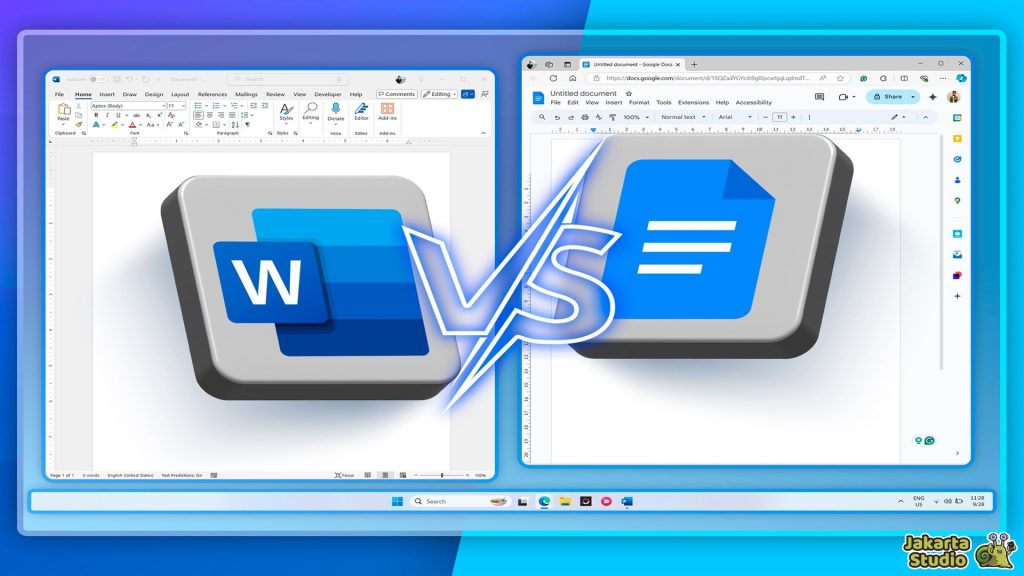
Google Docs: real-time collaboration
One of the most prominent things from Google Docs is the ease of collaboration. The real-time collaboration feature allows many people to open, edit, and comment in one document simultaneously.
Every change made will be immediately seen, with the identity of who edit it. This is very helpful in teamwork, especially if you are working on a project with friends, colleagues, or clients.
Not only that, you can also comment and reply directly to the section that needs to be fixed. Google Docs really facilitates online collaboration, which is very suitable for teamwork that is separate location.
Microsoft Word: limited collaboration
In the past, Microsoft Word was indeed not superior in terms of collaboration, because documents could only be stored locally. However, since the integration of OneDrive, Microsoft Word began to provide online collaboration features.
You can share documents and edit them with other people, but real-time editing experiences at Word are still less practical than Google Docs. The process can feel a little more complicated and sometimes requires time to synchronize.
User interface
Microsoft Word: Complete interface
Microsoft Word does have a very complete and rich feature interface. For those of you who are used to using Word, you certainly know how many menu choices and icons are available.
Features such as table settings, footnotes, mail merges, and precision documents layouts are very helpful for professional, academic, or business work. N
Amun, for novice users, the appearance of Word can feel a little confusing and seems to take longer to get used to it. If you need further features for complicated documents, Word is indeed the champion.
Google Docs: Minimalist Interface
Conversely, Google Docs comes with a simpler and minimalist display. Without many options scattered, you can immediately focus on writing without having to tamper with a lot of settings.
The menu available is only basic features such as setting letters, paragraphs, and additional images. Although it seems simpler, Google Docs still presents the basic functions needed by users everyday.
If you just want to write and edit quickly without having to bother choosing various features, Google Docs is clearly more user friendly.
Compatibility File format
Microsoft Word: Supports various formats
One of the advantages of Microsoft Word is a very broad file format compatibility. Word supports many types of file formats such as .doc, .docx, .rtf, .pdf, and .odt.
This flexibility allows Word to be used in various professional needs, both to print documents in certain formats, or send cross -platform documents without obstacles.
Google Docs: Limited Format
On the other hand, Google Docs stores documents in the .Gdoc format by default. However, you can still export documents to various other formats such as .docx, .pdf, or .txt.
However, sometimes Google Docs is less effective for documents that have complex tables, special fonts, or certain graphics elements.
Additional features
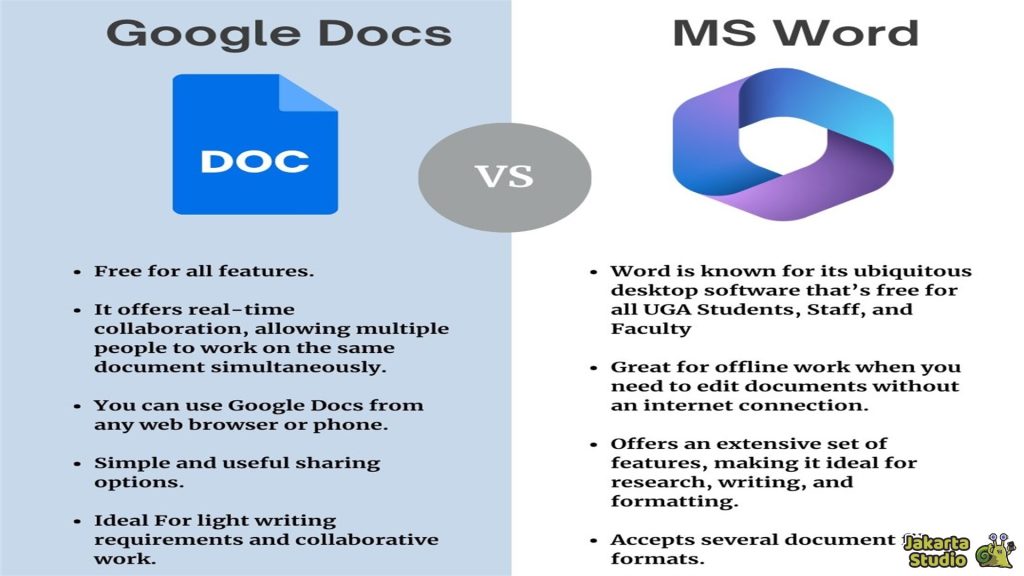
Microsoft Word: more complete features
When talking about additional features, Microsoft Word has a myriad of advanced functions that are very useful. From Mail Merge, tracking changes, to professional templates, all are here.
If you often work with formal or technical documents, features like this clearly facilitate work. In addition, integration with Microsoft Excel for dynamic tables and the ability to make macro makes it suitable for professional needs.
Google Docs: more minimal features
Even though Google Docs looks simpler, it still has some relevant additional features. You can use ADD-OST, third-party extensions, and integration with other Google services such as Google Sheets, Google Slides, and Google Forms.
Google Docs also offers voice typing features to type with sound and revision history that is very useful for tracking document changes. Although additional features are not as much as Word, the ease is actually an advantage on the other side.
Use costs
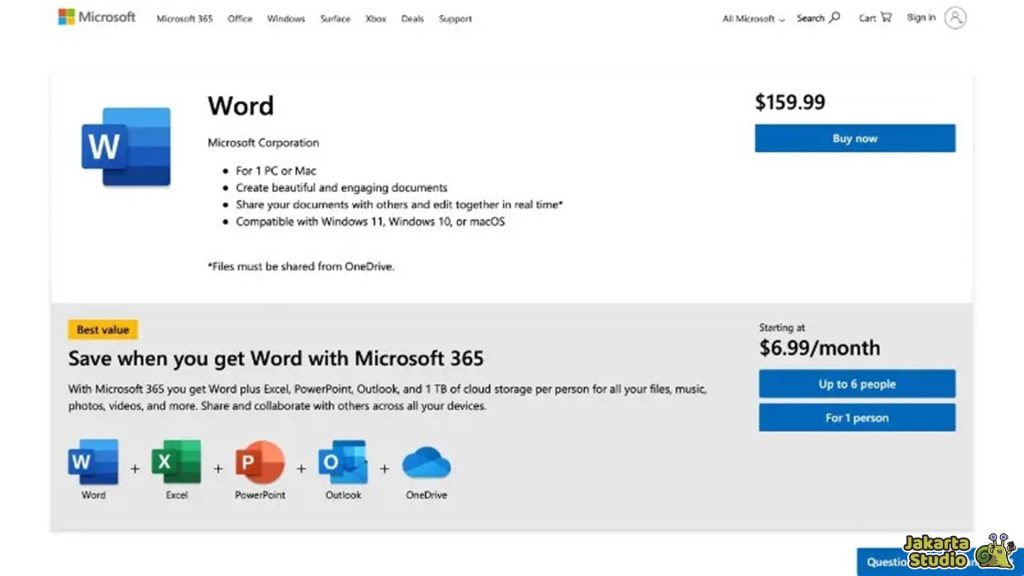
Microsoft Word: subscribe or license
One of the things to consider when choosing between Microsoft Word and Google Docs is the cost. Microsoft Word is generally available in a paid package through a Microsoft 365 subscription or a permanent license purchase.
With a Microsoft 365 subscription, you not only get Word, but also other applications such as Excel, PowerPoint, and OneDrive with large storage capacity.
For many companies or professionals, this fee is considered reasonable because of the full features offered. However, for individual users, subscription costs can be a big consideration.
Google Docs: Free Access
Unlike Microsoft Word, Google Docs can be used for free by only having a Google account. You can write, edit, and save documents on Google Drive without the need to pay.
The free storage provided is 15 GB, which is enough for most users. If you need more space, you can subscribe to Google One at a relatively affordable price.
Offline access
Microsoft Word: Without Internet Connection
One of the main advantages of Microsoft Word is the ability to work fully offline. From the beginning, Word was designed as a desktop software, which allows users to access all features even though it is not connected to the internet.
This is very beneficial for those of you who often work in locations with limited internet connections or even nothing at all. Microsoft Word is also more stable when used to process large and complex documents.
Google Docs: limited offline access
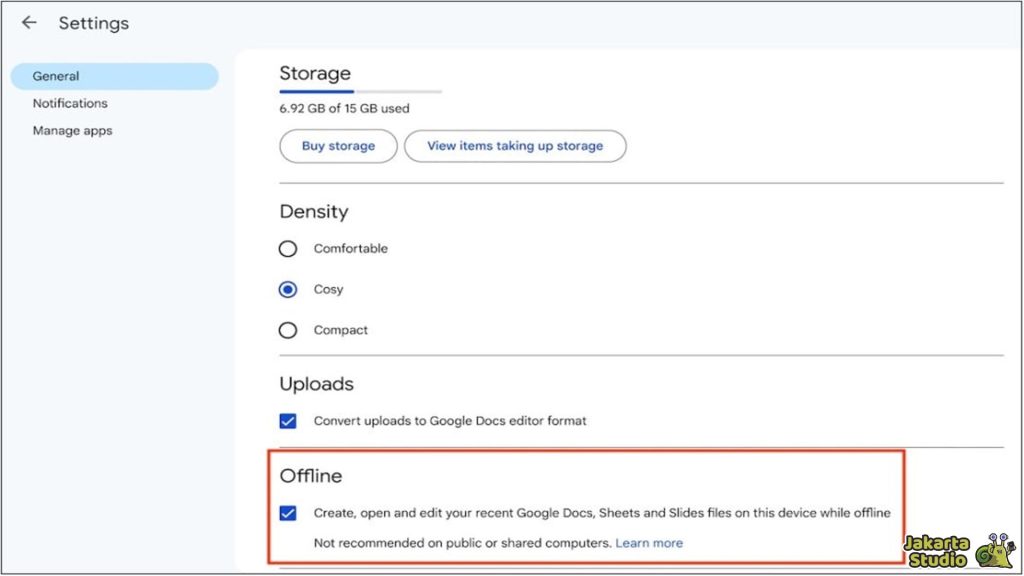
Although Google Docs is basically cloud -based, Google still provides options for working offline. By activating the “Available Offline” feature on Google Drive or the Google Docs application, you can open, edit, and save documents without an internet connection.
However, keep in mind that the offline access feature on Google Docs is still limited. Sometimes, when you return online, data synchronization can take time, and there is a possibility that some changes in documents are not immediately seen.
Storage feature

Microsoft Word: Local Storage or Cloud
When using Microsoft Word, you have the option to store documents locally on the device or use OneDrive for cloud storage.
This provides flexibility for users to choose the way that best suits their needs. OneDrive storage offers large capacity and allows documents to be easily accessible from other devices.
However, many people still prefer to store Word files locally for full security and control reasons for their files.
Google Docs: automatic cloud storage
Google Docs, on the other hand, is fully based on cloud, with documents automatically stored on Google Drive. The advantage is that you don’t need to worry about the loss of documents because everything is stored automatically.
Even if your device is damaged or lost, you can still access documents from other devices that are connected to the Google account.
However, free storage is only given up to 15 GB, which is divided by other Google services such as Gmail and Google Photos.
If you need more space, you can subscribe to Google One to get a greater capacity. Data security on Google Docs is also guaranteed, and this is a big advantage compared to local storage on Word.
Conclusion
After seeing various comparisons between Microsoft Word and Google Docs, it is clear that these two platforms have their respective advantages and disadvantages, depending on the needs of the user.
If you need full features, high compatibility, and the ability to work offline, Microsoft Word is a more appropriate choice.
Word is superior in terms of professionalism, with various advanced tools and complex features that can be relied upon for various formal or technical jobs.
However, if you prioritize easy access, real-time collaboration, and free access, Google Docs offers very attractive advantages.
With the ease of accessing documents anytime and anywhere and online collaboration facilities that are very practical, Google Docs is more suitable for teams or individuals who often move devices and require speed at work.
News
Berita
News Flash
Blog
Technology
Sports
Sport
Football
Tips
Finance
Berita Terkini
Berita Terbaru
Berita Kekinian
News
Berita Terkini
Olahraga
Pasang Internet Myrepublic
Jasa Import China
Jasa Import Door to Door
Comments are closed, but trackbacks and pingbacks are open.