Bluetooth is a wireless technology that is very helpful in daily activities. With this feature, you can connect laptops to other devices such as mouse, keyboard, speakers, headsets, and even smartphones.
However, there are still many users who are confused about how to turn on Bluetooth on their laptop, especially if the buttons or icons do not appear.
Now, so that you are not confused anymore, this article will completely discuss various ways to activate Bluetooth on a laptop, both for Windows and other devices, as well as tips on overcoming problems if Bluetooth is not detected.
How to activate bluetooth on a laptop
There are several methods that you can choose. You can turn on Bluetooth through the Settings menu, Device Manager, using a USB dongle, up to installing Bluetooth drivers manually. Let’s discuss one by one.
1. Activate Bluetooth through the Settings menu
The simplest way to turn on Bluetooth is through the settings menu or settings in Windows. The steps:
- Click the Start button on your laptop, then select Settings.
- If you want to be faster, just type “Bluetooth” in the search column.
- Enter the device menu.
- In the Bluetooth & Other Devices section, slide the button from the position off to ON.
If Bluetooth is active, you can directly connect other devices. Don’t forget, make sure the device you want to connect is in pairing mode.
2. Lighting Bluetooth late device manager
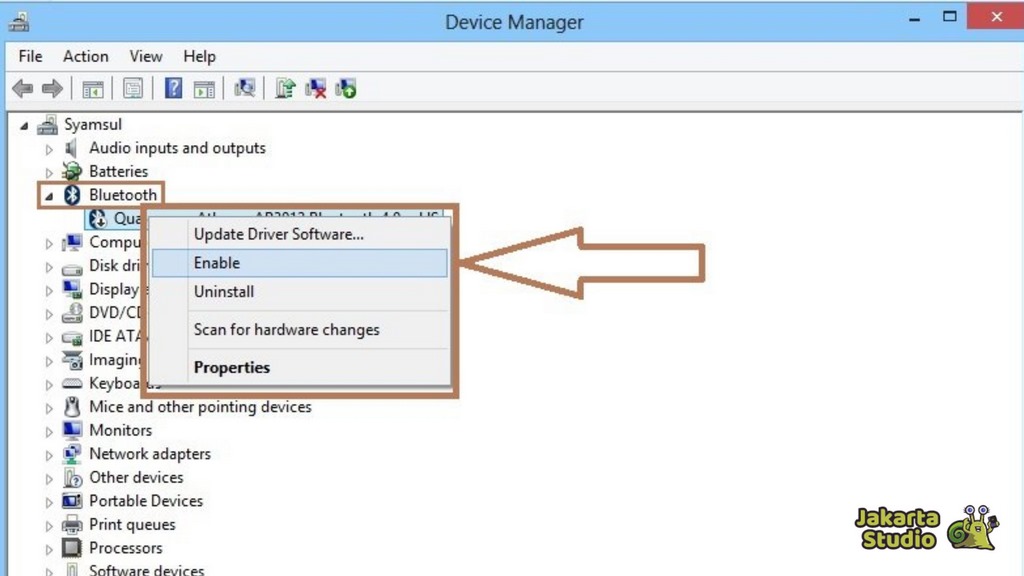
If you don’t find the Bluetooth option in Settings, try checking through the Device Manager.
- Open the Device Manager by pressing Windows + R, then type DevMGMT.MSC and press Enter.
- Look for the Bluetooth section on the device list.
- Right -click on the Bluetooth device, then select Enable.
If it works, the Bluetooth icon will appear and you can use it for other devices.
3. Wear Bluetooth USB Dongle
Not all laptops have default Bluetooth. If your laptop doesn’t have this feature, you can add Bluetooth using a USB dongle.
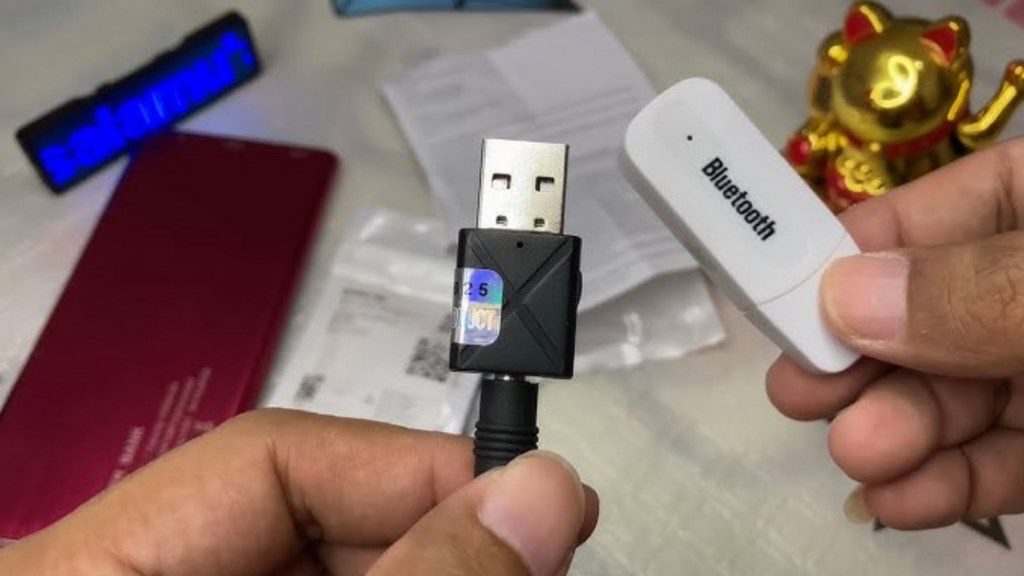
- Prepare a Bluetooth dongle that suits your laptop operating system.
- Plug the dongle to the available USB port.
- Follow the driver installation instructions that usually appear automatically.
- After the driver is installed, activate Bluetooth through the Settings menu.
In this way, a laptop that initially did not have Bluetooth can be directly connected to devices such as speakers, mouse, or cellphones.
4. Install Bluetooth drivers manually
If you have tried all the ways but Bluetooth still does not appear, most likely the driver has not been installed. The solution is to install the driver manually.
- Check if you have a laptop’s default CD driver. Usually there is a Bluetooth driver.
- If there isn’t, download the driver from the official website of your laptop manufacturer or your Bluetooth device.
- Run the installer file, then follow the instructions to the end.
- Restart the laptop.
- After turning back, try activating Bluetooth again.
How to Overcome Bluetooth is not detected on a laptop
Sometimes, even though Bluetooth has been activated, the device still cannot be connected. Don’t worry, there are several ways to fix it.

Reinstall Bluetooth Driver
Corrupt drivers can make Bluetooth not functioning. You just need to follow the steps below:
- Press Windows + E to open the Explorer file.
- Right -click this PC, select Properties.
- Enter the device manager.
- Right -click on the Bluetooth device, select Uninstall Device.
Restart laptops, and Windows will usually reinstall the driver automatically.
Activate Bluetooth adapter
Sometimes Bluetooth adapters are in a non -active condition. Here’s how to overcome it:
- Press Windows + R, type Devmgmt.msc, then enter.
- Find Bluetooth adapters.
- Right -click, select Enable Device.
Change discovereable settings
If Bluetooth is active but other devices can’t find it, maybe Discovereable mode has not been activated.
- Look for the Control Panel in the Windows Search field.
- Select the Device and Printers menu.
- Right -click on the Bluetooth icon, then select Bluetooth settings.
- Check the option allows the device to find this PC.
Reset Bluetooth service
If it still fails, try resetting the Bluetooth service in Windows:
- Press Windows + R, type Services.msc.
- Bluetooth search support services.
- Right -click, select Stop, then start again.
- Restart your laptop.
Run troubleshooter
Windows also has a troubleshoot feature that can detect Bluetooth problems automatically.
- Open the Settings menu.
- Renewal & Security Select> problem solving.
- Click Additional Troubleshooters, then select Bluetooth.
- Run troubleshoot and follow the instructions given.
Cover
Now you already know various ways to turn on Bluetooth on a laptop, ranging from settings, device managers, USB dongles, to manual drivers.
Even if your Bluetooth has a problem, there are many solutions ranging from reinstalling drivers, activating adapters, to running troubleshoot.
With this guide, you can more easily connect laptops with other devices without complicated. So, whenever you need a wireless connection, just activate Bluetooth and everything is done!
News
Berita
News Flash
Blog
Technology
Sports
Sport
Football
Tips
Finance
Berita Terkini
Berita Terbaru
Berita Kekinian
News
Berita Terkini
Olahraga
Pasang Internet Myrepublic
Jasa Import China
Jasa Import Door to Door
Comments are closed, but trackbacks and pingbacks are open.