If you use Linux to type assignments, create reports, or edit spreadsheets, you’re definitely familiar with LibreOffice — a very complete and free open‑source office suite!
But sometimes the version installed on the system feels old school or doesn’t have the latest exciting features and makes work faster. That’s why it’s very important to update LibreOffice so you can enjoy better performance.
In this article, Jakarta Studio will discuss the steps from start to finish in a style that is easy to follow. Curious? Just read in full!
Why do you need to update LibreOffice?
If you use Linux every day to type school assignments, make work reports at the office, or check presentations for important events, you definitely want to have office software that is fast, stable, and truly compatible with other people’s files, right?
Well, LibreOffice is one of the best open‑source office suites available Linuxcomplete with Writer, Calc, Impress, and more — and best of all, it’s free!
The problem is, the version of LibreOffice that comes standard via your distro’s repository is often not the newest, especially on distros that focus on stability like Debian or Ubuntu.
That’s why it’s very important to update LibreOffice on Linux so you can enjoy new features, performance boosts, and better support without being stuck on the old version.
Tutorial for Updating LibreOffice on Linux
There are two easy and safe ways to update LibreOffice on your Linux system — and we’ll discuss both methods so you can choose which one is easiest.
Update via the official repository
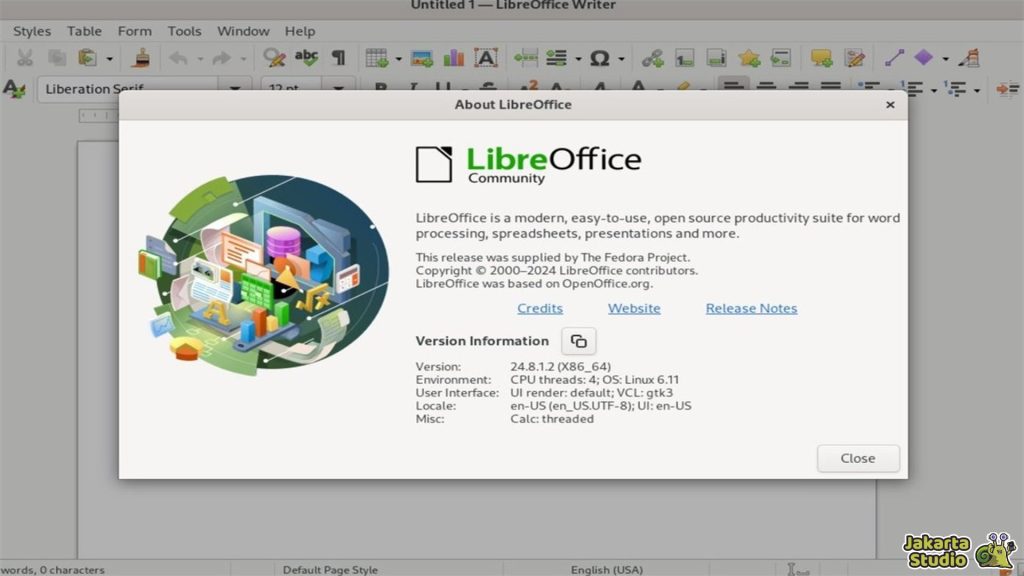
This is the method most commonly used by Linux users, especially distros that use Debian or Ubuntu. In essence, you ask the Linux system to fetch the latest version of LibreOffice from the official managed repository.
This method is easier and safer because the LibreOffice update will be part of your regular system update — automatically appearing via Software Updater or apt update in Terminal.
Here’s the step by step:
Open Terminal.
Add LibreOffice PPA repository:
sudo add-apt-repository ppa:libreoffice/ppa
sudo apt update
Run update:
sudo apt install libreoffice
If so, your system will have a newer version of LibreOffice without needing to manually install one file at a time.
Profit:
- Updates are automatic
- More integrated with the system
- No need to download manually every time a version comes out
Lack:
- The version that appears via the repo can be slightly slower than the version directly from the LibreOffice site.
Manual Update via .deb Package
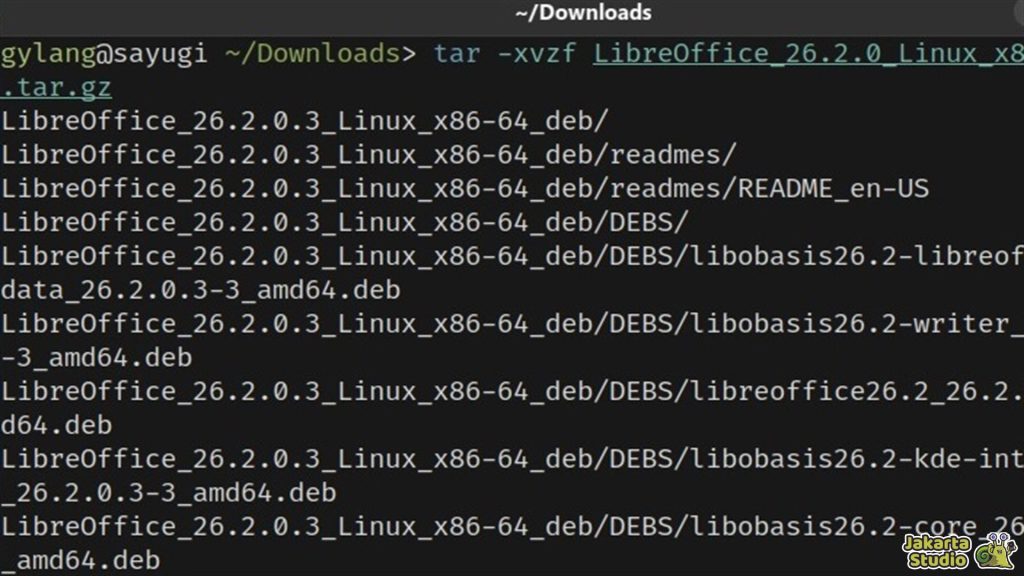
If you are someone who likes full control and wants to immediately have the newest version of LibreOffice released on the official website, this second method is really suitable.
First of all, you can go to the LibreOffice for Linux download page and select the .deb package that suits your distro.
Watch the complete tutorial:
First delete the old version of LibreOffice to make it clean:
sudo apt purge ‘libreoffice*’
sudo apt autodelete –purge
rm -rf ~/.config/libreoffice ~/.local/share/libreoffice
Download file .tar.gz LibreOffice latest from the official website.
Extract the downloaded package:
tar -xvzf LibreOffice_XY.deb.tar.gz
cd LibreOffice_XY/DEBS
Install all .deb files:
sudo apt install ./*.deb
Finished! Now the latest version of LibreOffice is ready to be used on your Linux.
Alternative Ways to Use Snap & Flatpak
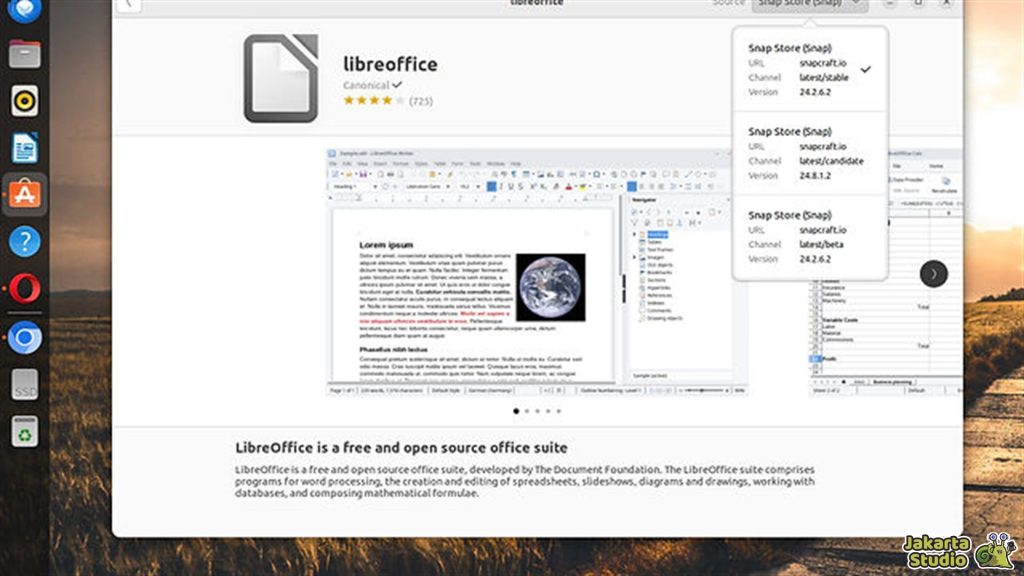
Apart from the two methods above, you can also use universal packages like Snap or Flatpak to update LibreOffice:
Use Snaps:
Install via Snap Store, then every time a new version is released, Snap will automatically update.
sudo snap install libreoffice
Use Flatpak:
If your distro supports Flatpak (like GNOME Software), you can install LibreOffice via Flathub — it also automatically updates without any hassle every time a new version comes out.
Conclusion
If you are just starting to use Linux or want the simplest thing, the repository (PPA) or Snap/Flatpak method is usually the safest and most practical.
But if you often work hard and want the newest features directly from the official site, manually installing .deb could be an alternative worth trying.
In essence, all of them can keep your LibreOffice up to date and powerful on Linux — just choose which one suits you!
News
Berita Teknologi
Berita Olahraga
Sports news
sports
Motivation
football prediction
technology
Berita Technologi
Berita Terkini
Tempat Wisata
News Flash
Football
Gaming
Game News
Gamers
Jasa Artikel
Jasa Backlink
Agen234
Agen234
Agen234
Resep
Download Film
Gaming center adalah sebuah tempat atau fasilitas yang menyediakan berbagai perangkat dan layanan untuk bermain video game, baik di PC, konsol, maupun mesin arcade. Gaming center ini bisa dikunjungi oleh siapa saja yang ingin bermain game secara individu atau bersama teman-teman. Beberapa gaming center juga sering digunakan sebagai lokasi turnamen game atau esports.
Comments are closed, but trackbacks and pingbacks are open.